
Every homeowner we send you, in one app on your phone.
It tells you who to ring first, what to say and when each quote needs a follow-up. Then it shows you what the leads turned into, in dollars.
Free with PreBuild. iPhone and Android. Nothing to download from an app store.

A new homeowner lands. Your phone tells you.
The moment we've rung and checked a homeowner, they're in your app and your phone buzzes. The lock screen only shows the job and the suburb, never their name or number.
Prefer a text? Tell us and we'll text you when a new homeowner lands as well.
- When they came in, to the minute
- When they want a call: morning, afternoon or evening
- A Call button ready to go
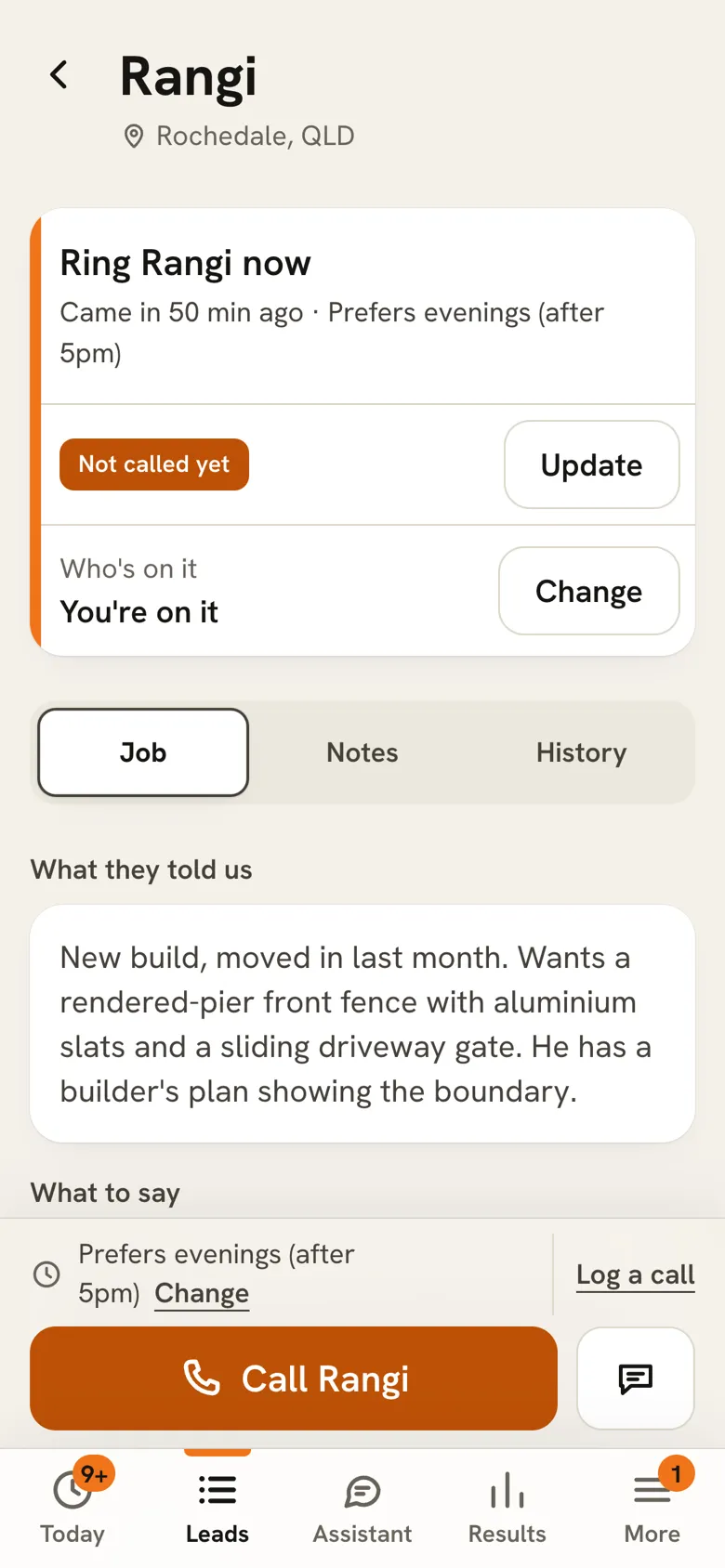
Open it in the morning. It tells you who to ring first.
Today puts the day in order. Call-backs you promised come first, then new homeowners to ring, then quotes and visits that are due. Green means it's your move, amber means you're waiting, red means it's overdue.
- Promised call-backs at the top
- New leads you haven't rung yet
- Follow-ups due today
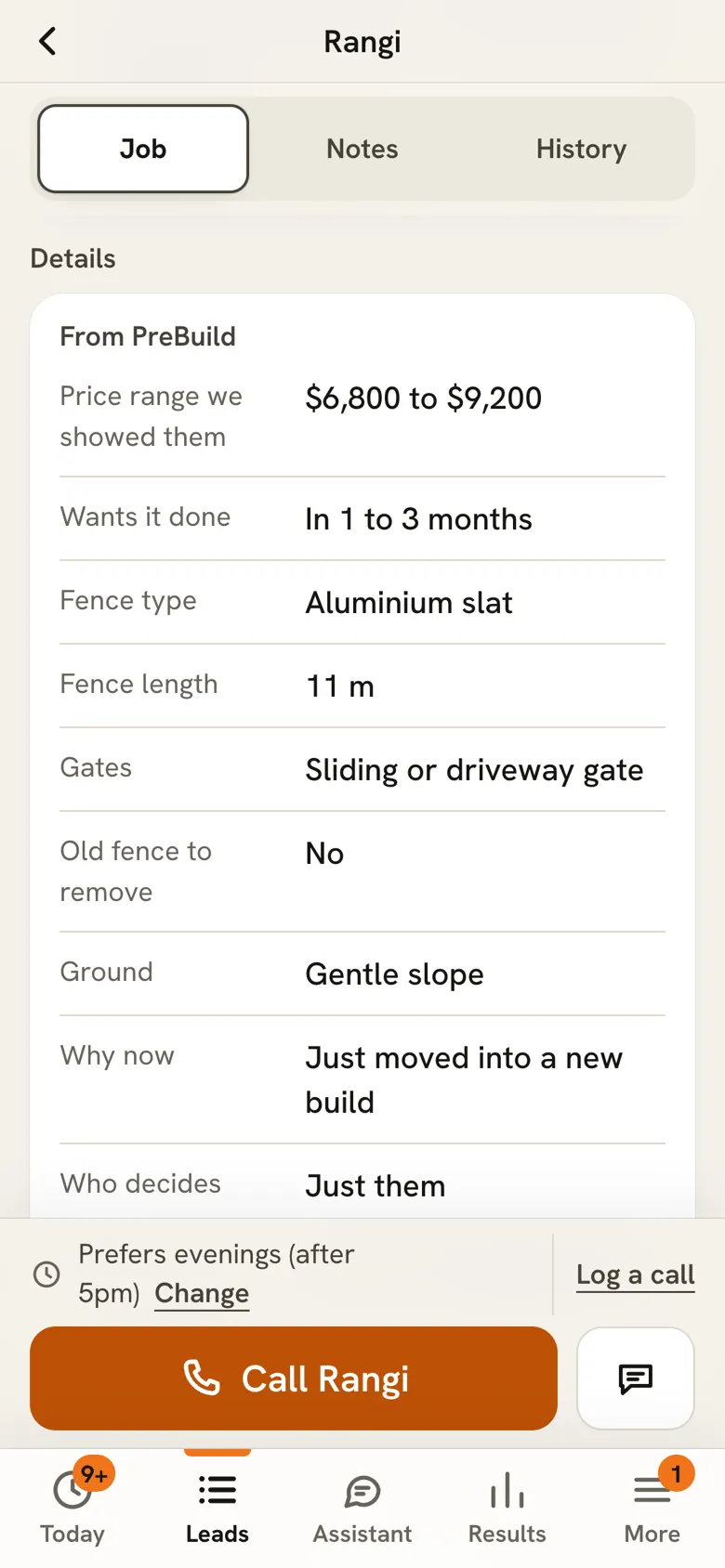
Know the job before you ring.
Every lead comes with what the homeowner told us on the call: what they want done, how big, the ground, who decides, the budget, and the price range they were shown. Under it is a first line written for that job and three questions to ask, so you don't have to work out what to say.
- The job in plain words
- Who makes the call, and the budget they gave
- An opening line and three questions for your trade

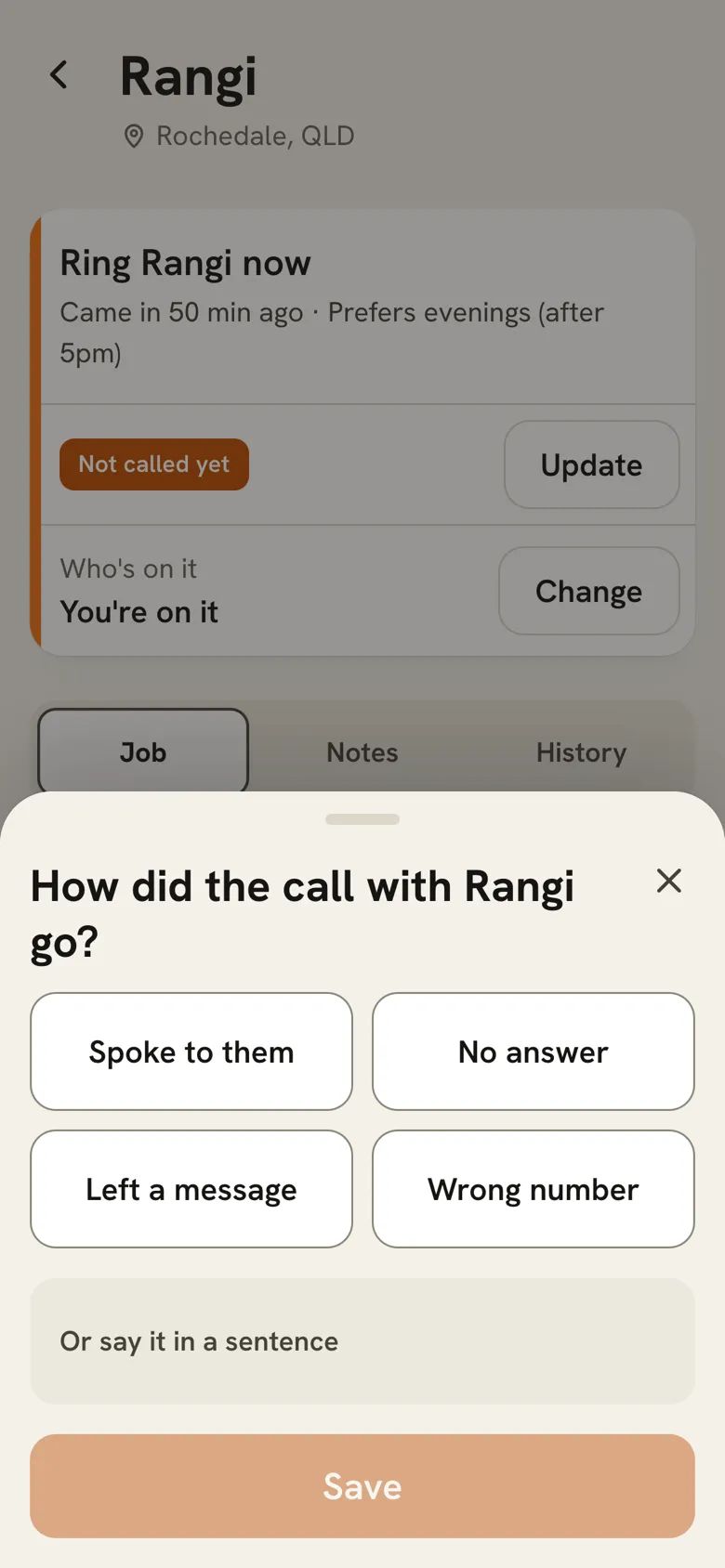
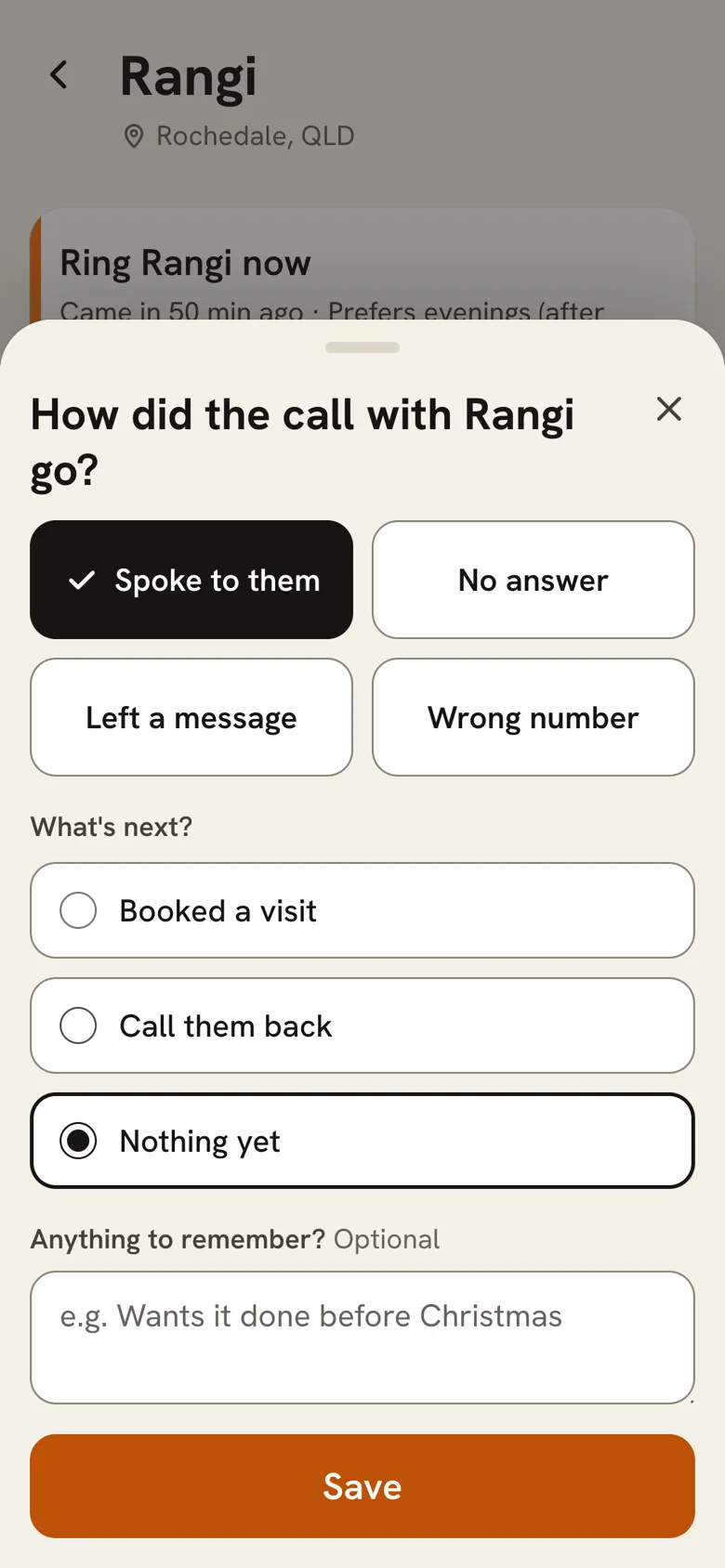
Hang up. One tap logs how it went.
Tap Call and your own phone rings them. When you come back to the app it asks how the call went: spoke to them, no answer, left a message or wrong number. Book the visit right there and it goes in your day.
- Rings from your own phone and number
- Spoke to them, no answer, left a message, wrong number
- Book the visit or a call-back on the spot
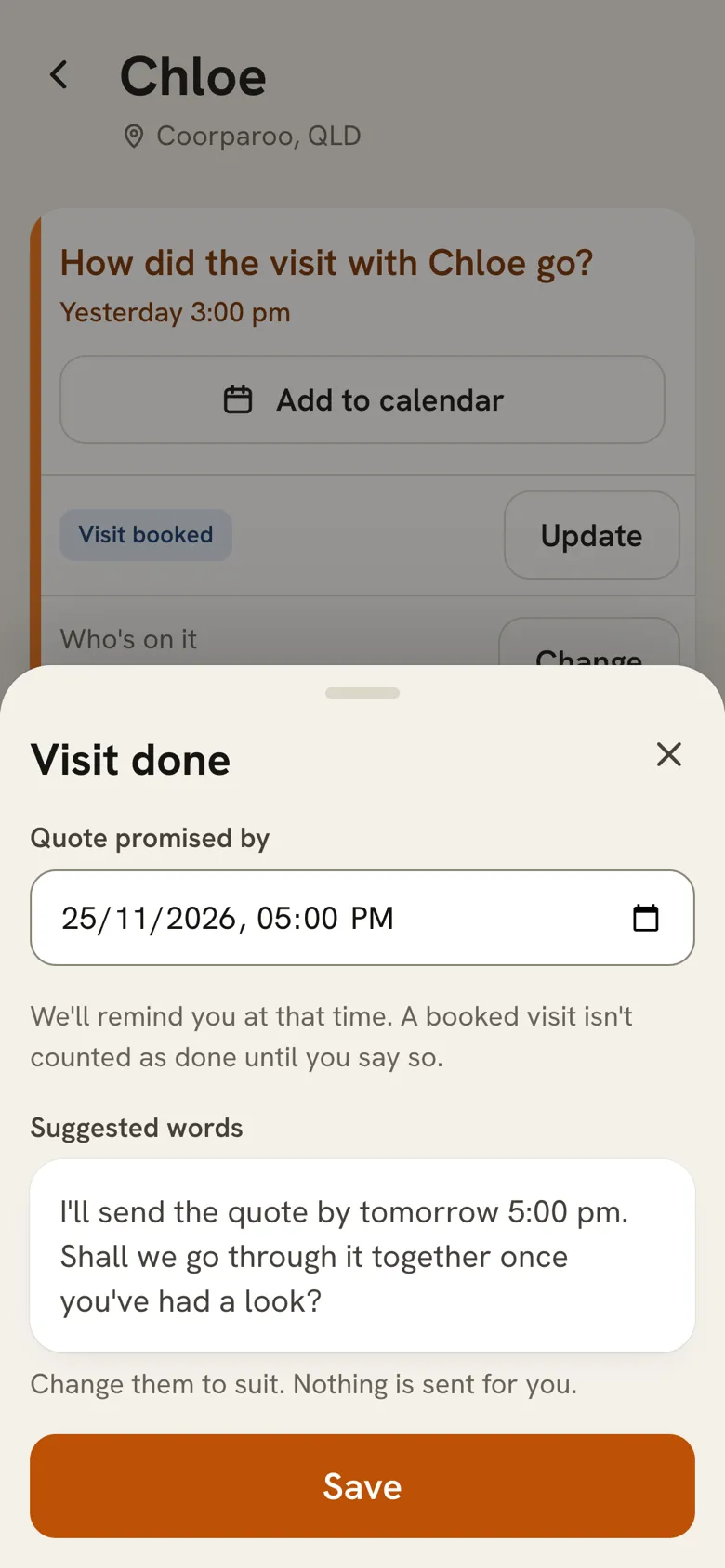
Quotes don't go cold. Each one has its next step.
After a site visit the app asks how it went. Say when the quote's promised by and it reminds you to send it. Once it's out, the follow-up date sits on the lead until you've heard back. Moving a job along is one tap: visit done, quote sent, won, or not going ahead.
- Asks how each visit went
- Reminds you when a quote is due
- Follow-ups on every quote until you hear back

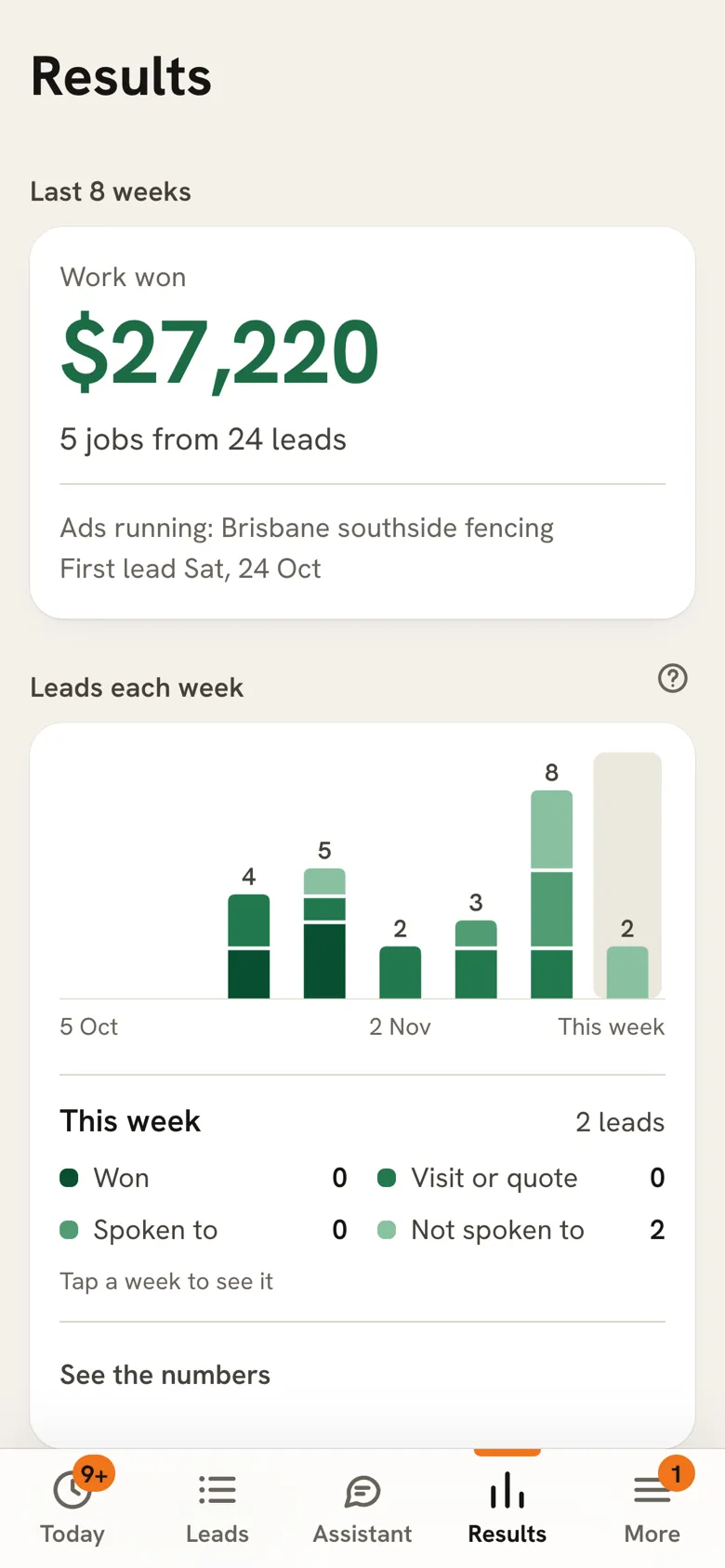
See what the leads turned into.
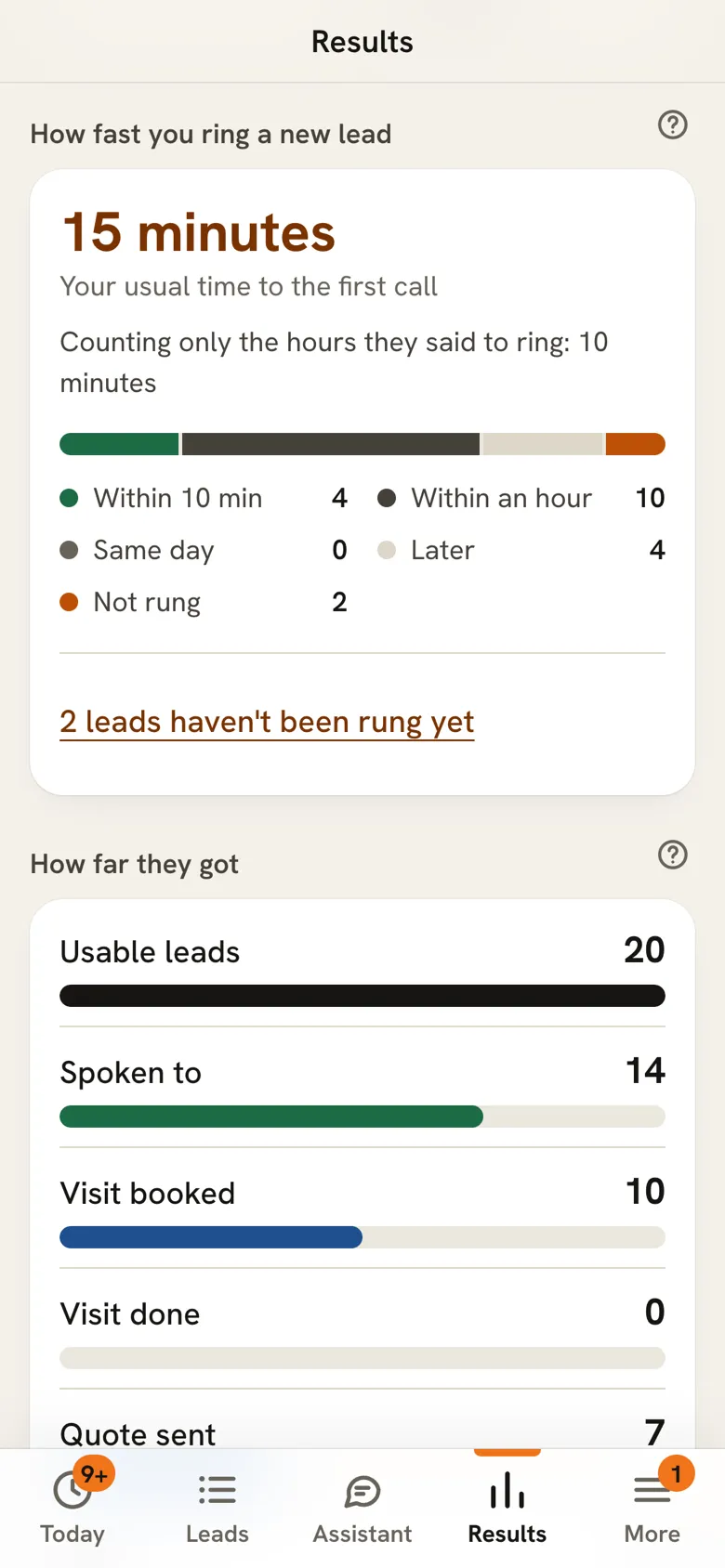
Results shows the work you've won over the last eight weeks, in dollars, and the leads that came in each week. Tap a week to see how far those leads got. It also shows how fast you ring a new lead and where jobs drop off, so you know which step to fix.
- Work won, in dollars
- How fast you ring a new lead
- Where jobs drop off: spoken to, visit, quote, won
Get better at winning jobs, two minutes at a time.
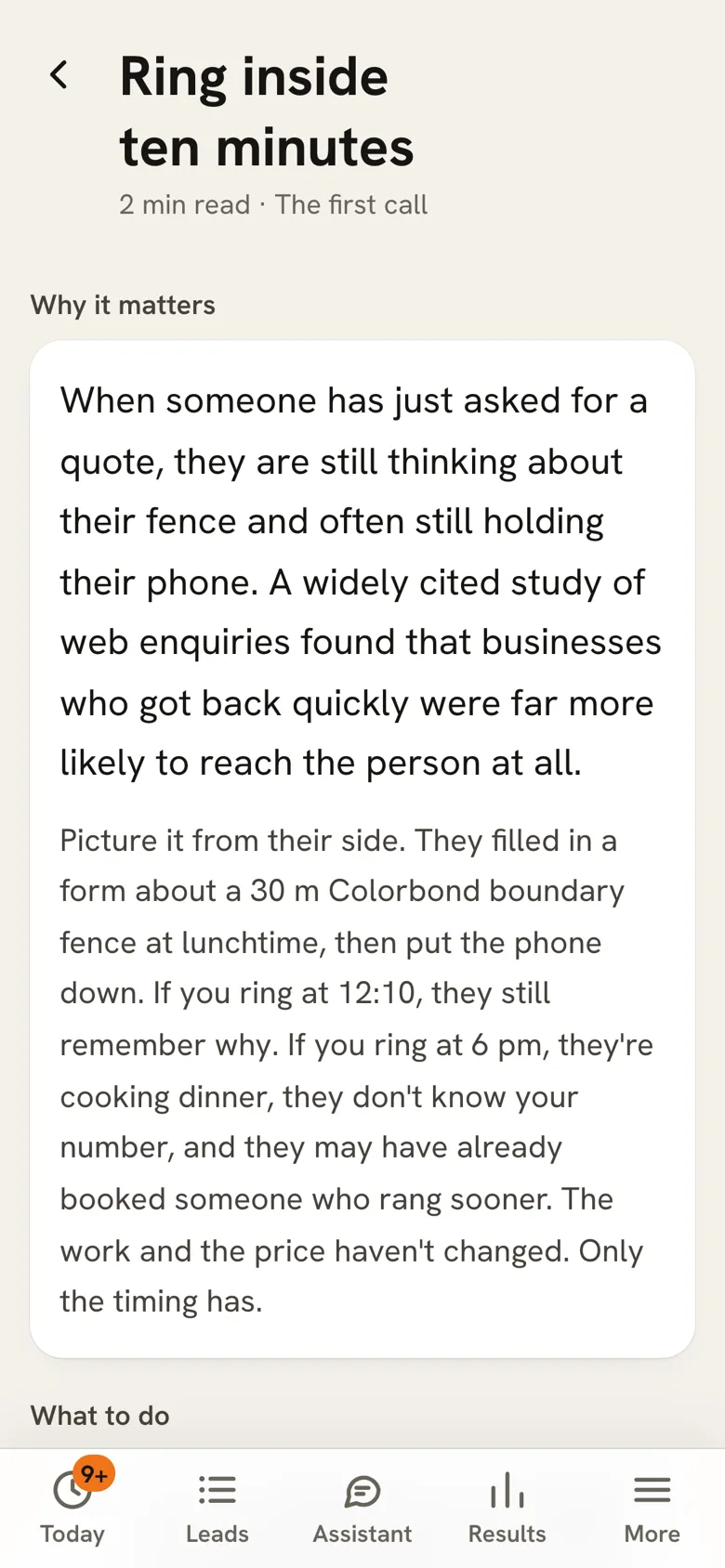
Learn has short lessons written for trades: the first call, booking the visit, quoting, following up without being a pest, and asking for reviews and referrals. Each takes about two minutes to read.
Want more help? An assistant that writes a weekly summary of how you went, with one thing to try, and gives you words for when a homeowner pushes back on price, is available as an add-on.
- Ring inside ten minutes
- Offer two times, get everyone who decides there
- Follow up every quote, with a reason each time

You're in control of what comes in.

Lead flow
Pause new leads, set the most you want in a week or a day, and pick the days you take them.
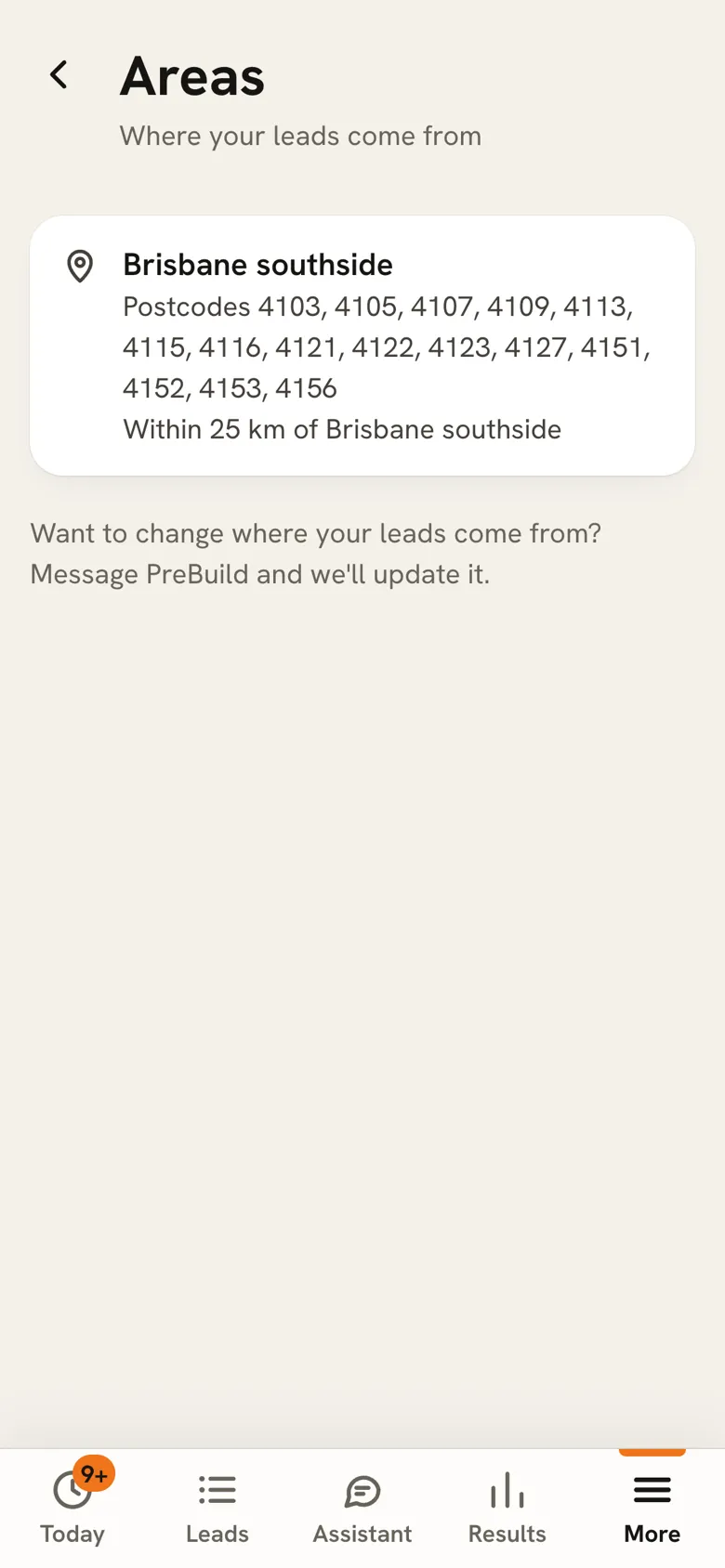
Your areas
Leads only come from the postcodes and radius you work in.

Your team
Give leads to the people on your team and see who's on top of theirs.
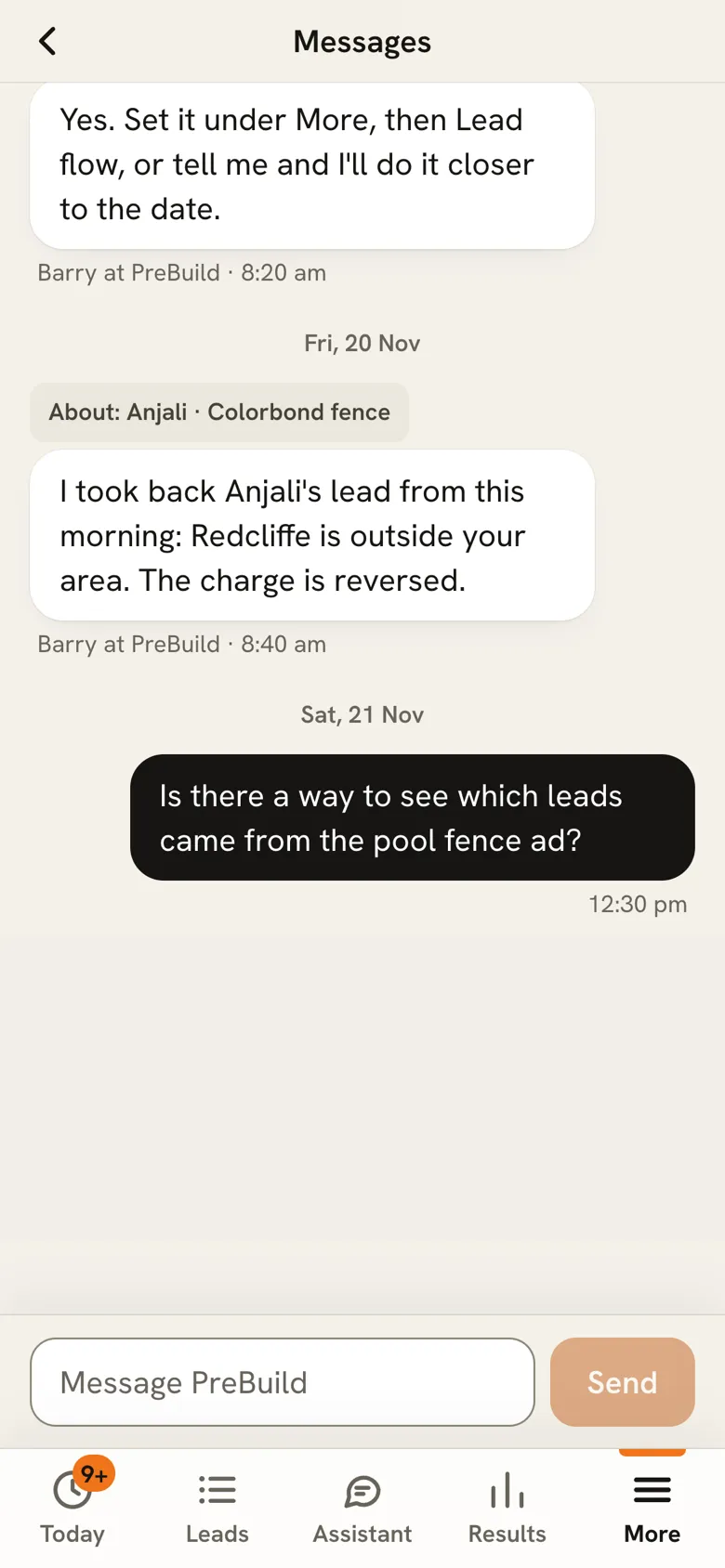
A person to talk to
If a lead's a dud, tell us in Messages. A person checks it and reverses the charge.
Ready on day one, in about two minutes.
The first time you sign in, the app walks you through it: how PreBuild works, checking your areas and days, putting the app on your home screen and turning on notifications. Then you practise on a made-up lead. Three taps and you've got it. Nothing is saved and nobody gets rung.
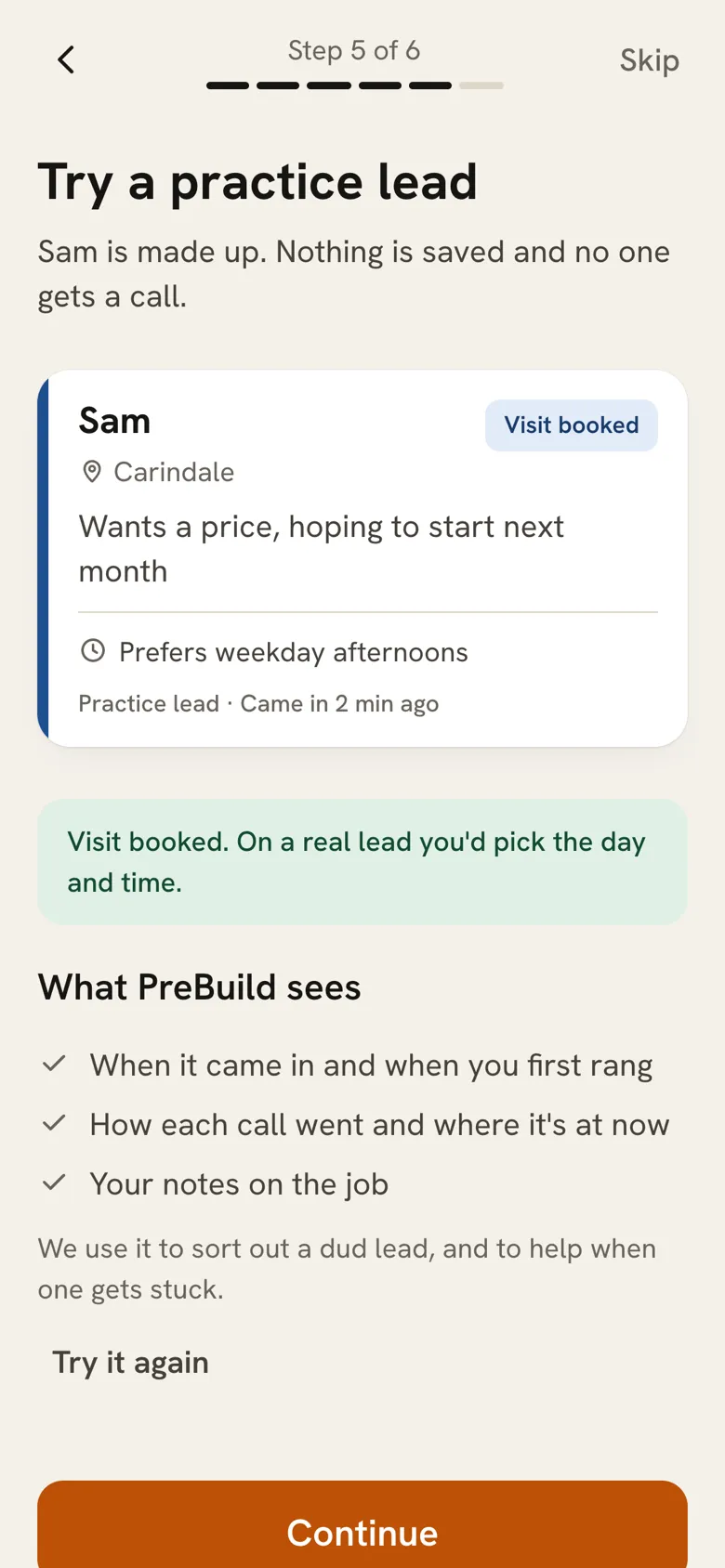
Screens from a made-up demo business. Names and numbers are not real.
Common questions
Does the app cost extra?
No. It comes free with PreBuild. Every business we send homeowners to gets it. The assistant that writes your weekly summary and price push-back answers is an add-on.
Do I need to download it from the App Store?
No. We send you a sign-in link. Open it, choose a password, and add the app to your home screen in a few taps. It works on iPhone and Android, and in a browser on a computer.
How do I find out a new homeowner has come in?
Your phone gets a notification the moment they're in your app. It only shows the job and the suburb on the lock screen. If you'd rather get a text as well, tell us.
Do calls go through PreBuild?
No. Tap Call and your own phone rings the homeowner from your own number. The app only notes that you rang and asks how it went.
Can my team use it?
Yes. Add the people on your team, give each one leads, and see who has open or overdue leads.
What does PreBuild see?
When each homeowner came in, when you first rang, how each call went and where the job is now, and your notes on the job. We use it to sort out a dud lead and to help you win more of them.
What if a lead isn't real or isn't in my area?
Tell us in Messages. A person checks it, and if it's a dud the charge is reversed.
Can I stop leads when I am busy?
Yes. Pause new leads from Lead flow, or set the most you want in a week or a day. Turn them back on whenever you are ready.
Want homeowners, and the app to win them?
Tell us your trade and where you work. We'll ring you to talk it through. The app comes with it.
No retainer, no lock-in, nothing monthly.
Thanks. We've got your application.
We'll call you to talk it through: your trade, where you work and how many homeowners you could take on. If it's a fit, you get your price in writing.